Deploy with Microsoft Intune
The complete work instruction for a managed BeeSensible rollout with Intune: identity, extension, work sign-in, desktop app, macOS, verification and rollback.
With Microsoft Intune you roll out BeeSensible centrally: the browser extension installs by itself, employees sign in with their work account, and the desktop app installs silently. Put this page next to Intune and work top to bottom; the tables follow the fields of the Intune screen.
Deployment console in the dashboardThe console generates the sign-in script, the policy lines and the downloads, and shows the values that change per release: checksums and the version number for the detection rule.What you need
- Devices running Windows 10 (64-bit) or Windows 11, joined to Microsoft Entra ID (Entra joined) and enrolled in Intune. TestedWindows 11, 31 August 2026
- A verified domain and a connected identity provider in BeeSensible; see Identity below.
- A target group: a security group in Entra with the users you are rolling out to. Preferably start with a small pilot group, then assign the same profiles to the rest of the organisation.
Network and firewall
On a network with outbound filtering, allow these hosts on port 443. The endpoints Intune itself needs are not in this list; Microsoft publishes those.
Allowlist
| Host | Used for |
|---|---|
api.beesensible.eu | API traffic from the extension, desktop app and dashboard |
idp.beesensible.eu | Signing in, including the redirect from your own identity provider |
app.beesensible.eu | The dashboard |
beesensible-downloads.s3.nl-ams.scw.cloud | Desktop downloads and updates |
s3.nl-ams.scw.cloud | The local detection package, only with local detection |
clients2.google.com | Installing and updating the Chrome extension |
clients2.googleusercontent.com | Download of the Chrome extension package |
edge.microsoft.com | Installing and updating the Edge extension |
*.dl.delivery.mp.microsoft.com | Download of the Edge extension package, partly port 80 |
login.microsoftonline.com | The Microsoft sign-in itself, with an Entra connection |
If you also allowlist applications: the desktop app starts a helper process on the device that does the detection. In Task Manager and in EDR reports that process is called python.exe, and it runs from the BeeSensible installation folder:
C:\Program Files\BeeSensible\resources\sidecar\python\python.exe
Identity
The sign-in hint from step 1 only works when BeeSensible knows your employees' email domain and which identity provider belongs to it. Without that connection, the sign-in falls back to the regular account picker. Arrange this before step 1, in the console under Identity.
- Verify the domain. Add your employees' email domain and create the DNS record the console shows. Only after verification can an identity provider be connected to it.
- Connect the identity provider. Under Business sign-in (Microsoft Entra ID) you find the steps for the app registration in Entra; the console shows the redirect URI and the fields for Directory ID, Application ID and client secret.
- Neutral app name. Name the app registration in Entra BeeSensible, for example: Microsoft shows that name to every employee on the sign-in screen. You can rename it later via Entra, App registrations, Branding.
- Client secret lifetime. A client secret in Entra expires. Note the end date: once it expires, the work sign-in stops until you paste a new secret into the console.
- Emergency access. Employees who come in through the identity provider have no password of their own. Make sure at least one administrator does have a password and a second factor; the console shows under Emergency access whether that is the case.
Step 1: provide the work sign-in
The sign-in script tells the extension and the desktop app which work address belongs to the signed-in Windows user. Employees then skip typing an address and picking an account.
The script runs as system, because a standard user has no write access to the protected policy branch of the registry. It looks up the signed-in work accounts on the device itself and writes the browser policy for Chrome and Edge plus the key for the desktop app, per user. On a device with only a local Windows account, the script fails visibly in Intune: a green check always means something was actually written.
Download the sign-in script
Add it as a platform script
Intune: Devices → Scripts and remediations → Platform scripts → Add → Windows 10 and later.
Fill in the settings like this
| Intune field | Enter |
|---|---|
| Run this script using the logged on credentials | No (that is the system mode) |
| Enforce script signature check | No |
| Run script in 64 bit PowerShell Host | Yes |
Assign to your target group
Assign to the security group from What you need.
Windows fetches newly assigned scripts on every restart and periodically in between. To force it right away: Settings → Accounts → Access work or school → the connected work account → Info → Sync. If your organisation uses the Company Portal app, its sync button works too.
The script does not seem to run
Check with dsregcmd /status that the device is Entra joined and that the user has a work account sign-in (AzureAdPrt: YES). A device that is only registered receives no scripts; in a session with a local Windows account there is nothing to set and the script fails visibly in Intune.
The script shows Succeeded, but loginHint is missing
Three causes, checked in this order:
- The user was not signed in when the script ran. The script only writes keys for the profiles loaded at that moment. Run it again while the user is signed in (see the callout above).
- The user's sign-in address is on a domain that is not verified in BeeSensible. The hint is written, but the extension does not recognise it. Verify that domain under Identity.
- The session runs on a local Windows account; there is no work account to set.
What the script did per user is on the device in this log:
C:\ProgramData\Microsoft\IntuneManagementExtension\Logs\AgentExecutor.log
The script already ran, but a new user has no hint
Edit the script in Intune and save it again; it then runs again for all signed-in users on the device. Whether this is still needed after the pilot is covered in the callout Once per target.
Where do I see what the script did?
In Intune, under the script at Monitor, you see the status per device. The lines the script writes itself (set or skipped, per user) are on the device in AgentExecutor.log; the management extension logs the delivery of the script in IntuneManagementExtension.log. Both live here:
C:\ProgramData\Microsoft\IntuneManagementExtension\Logs
Step 2: install the extension automatically
The forced installation works through the ExtensionInstallForcelist browser policy: the extension appears in the browser by itself and cannot be removed.
Create a configuration profile
Intune: Devices → Configuration → Create → New policy → Windows 10 and later → Settings catalog.
Add the forcelist line per browser
Search the catalog for ExtensionInstallForcelist, under Google Chrome and under Microsoft Edge. Pick the device variant of the setting each time and paste this value per browser:
cnlogmngeghlgbncagnoodfjkbaknnbo;https://clients2.google.com/service/update2/crxplnhmaecddjmliagaedlgagopdcahlgb;https://edge.microsoft.com/extensionwebstorebase/v1/crxAssign to your target group
Assign to the same group as step 1.
Automatic Microsoft sign-in
With steps 1 and 2 in place, the extension recognises the work account: the employee types no address and picks no account. Whether a Microsoft screen still appears depends on the browser.
This needs a recent extension. Since5.5.14 the extension recognises the work account from the sign-in script; Since5.5.17 it also tries to complete the sign-in in Edge without an account picker. Check the version on chrome://extensions or edge://extensions. When a version arrives is up to the store; an organisation cannot pin the store version.
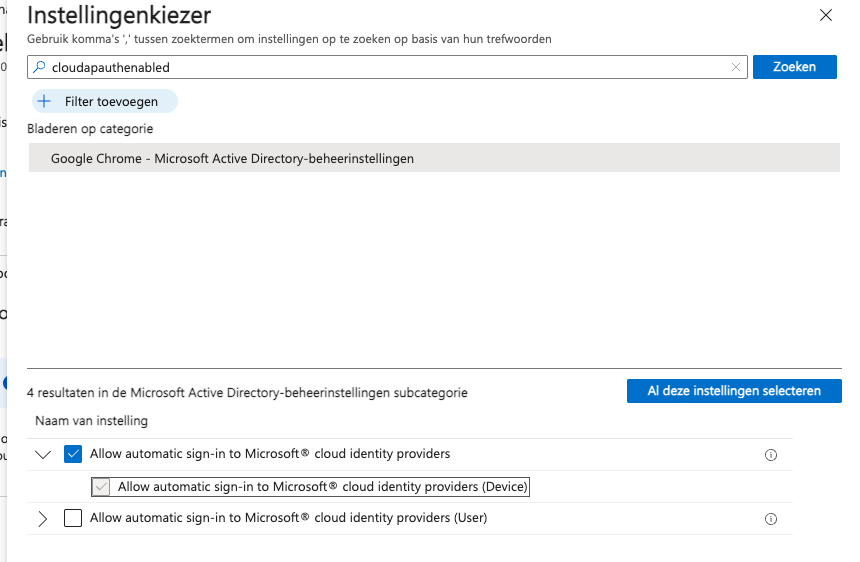
Chrome only passes the Windows sign-in on to Microsoft with the CloudAPAuthEnabled policy; see Silent sign-in in Chrome under Optional hardening. With that policy the sign-in completes without a password or confirmation. Tested31 August 2026
Without that policy the sign-in still works; Microsoft then asks for a one-time confirmation or password. Not yet validated
Edge signs Microsoft web apps in silently by default on an Entra-joined device; no policy is needed for that.
For the BeeSensible sign-in in Edge, that silent completion has not been established: expect a Microsoft window and note while testing exactly what employees see. Do not prescribe extra Edge policies to work around this; BeeSensible's sign-in flow is the determining factor here, not the Edge configuration. Not yet validated
After a successful sign-in, BeeSensible keeps using the existing session for as long as it is valid.
Microsoft still asks to pick an account
Four causes, checked in this order:
- The hint is missing or unusable. Run the registry commands from step 1. If there is no
loginHint, if it literally says{{UserPrincipalName}}, or if the value has no @ sign, the extension ignores it; the console counts such a client under Managed configuration not filled in. - The extension is older than the version above. Check
chrome://extensionsoredge://extensionsand wait for the store. - The domain of the work address is not verified in BeeSensible.
- No identity provider is connected; there is then no business route and BeeSensible shows the regular sign-in screen. See Identity.
Edge still shows the old account picker
First check the extension version on edge://extensions. The Edge store delivers updates later than the Chrome Web Store; as long as the version is below the requirement above, the extension behaves like a plain installation without work-account recognition. Waiting is the only option; policy cannot force a version.
Optional hardening
Both measures below are optional: the extension and the sign-in work without them. Optional
Silent sign-in in Chrome (CloudAPAuthEnabled)
Chrome only passes the Windows sign-in on to Microsoft with this policy (Chrome 111 or newer):
CloudAPAuthEnabledSearch the settings catalog for the name above; that finds it faster than the full display name "Allow automatic sign-in to Microsoft cloud identity providers". Pick the device variant, set it to Enabled and assign to your target group. The policy applies to the whole device by definition, not per browser profile, and does not work in Incognito windows.
With this policy, Chrome shares device and account information with Microsoft during Microsoft sign-ins, the same exchange Edge performs by default.
The sign-in is not automatic in Chrome
Check in chrome://policy that CloudAPAuthEnabled is true, force a sync as in step 1 otherwise, and then restart Chrome completely (close all windows).
Private windows (Incognito and InPrivate)
Forced installation does not automatically apply in private windows: whether an extension may run there is a permission the user sets themselves, and browser policy cannot switch it on by design. Without an extra measure, a private window is a window without BeeSensible.
Chrome on Windows and macOS has no policy that forces an extension in Incognito; the comparable policy exists only on ChromeOS. The choice there is:
- disable Incognito browser-wide with
IncognitoModeAvailabilityset to 1 (takes effect after a browser restart), or - accept the gap and measure it.
From Edge 139, InPrivate can be made dependent on the extension: with the MandatoryExtensionsForInPrivateNavigation policy, InPrivate only works after the user has allowed BeeSensible there. Until then, InPrivate refuses to navigate.
Set the policy via the settings catalog, with the Edge extension id as the value:
plnhmaecddjmliagaedlgagopdcahlgbSince5.5.17 the extension reports at sign-in whether it may run in private windows; the deployment console counts how many clients are covered.
If you withdraw the forced installation later, remove these policies as well; see Rolling back.
Deploying the desktop app
For Intune, BeeSensible provides a ready-made Win32 package (.intunewin) containing the enterprise installer. Packaging with IntuneWinAppUtil yourself is not needed.
Download the Intune package
The checksum proves the download is complete and undamaged, nothing more. Where the file comes from is shown by the digital signature on the installer. The .intunewin package contains that signed .exe; check it on the standalone installer from the console, under Properties → Digital Signatures, with Venturo Media B.V. as the signer. Or on the command line:
signtool verify /pa BeeSensible-Enterprise-Setup-<version>.exe
Next to the checksum list, BeeSensible publishes a signature over that list (SHA256SUMS.sig); the deployment console verifies it before it shows a checksum. Not yet validated
Create the Win32 app
Intune: Apps → Windows → Add → Windows app (Win32). Upload the .intunewin package.
App information
| Intune field | Enter |
|---|---|
| Name | BeeSensible Desktop |
| Description | for example Highlights sensitive data while you type and cleans documents on your own device. |
| Publisher | BeeSensible |
The remaining fields on this screen can stay empty.
Program
| Intune field | Enter |
|---|---|
| Install command | see below |
| Installer type | Command line (directly under the install command) |
| Uninstall command | see below |
| Installation time required | leave the default |
| Allow available uninstall | No |
| Install behavior | System |
| Device restart behavior | No specific action |
| Return codes | leave the defaults |
Install command; the console shows it with the real version number:
BeeSensible-Enterprise-Setup-<version>.exe /S
Uninstall command:
"C:\Program Files\BeeSensible\Uninstall BeeSensible.exe" /S
Requirements
| Intune field | Enter |
|---|---|
| Operating system architecture | 64-bit |
| Minimum operating system | the lowest Windows 10 version your organisation still uses |
| Disk space, memory, processors | leave empty |
| Additional requirement rules | none |
Detection rules
Choose Manually configure detection rules and add one rule. The panel is called Detection rule and shows the fields in this order:
| Intune field | Enter |
|---|---|
| Rule type | Registry |
| Key path | see below |
| Value name | DisplayVersion |
| Detection method | Version comparison |
| Operator | Greater than or equal to |
| Value | the version number the console shows next to the package |
| Associated with a 32-bit app on 64-bit clients | No |
Key path:
HKEY_LOCAL_MACHINE\SOFTWARE\Microsoft\Windows\CurrentVersion\Uninstall\7181cf82-0fd7-4079-86fa-1d55be2016d3
Dependencies
Supersedence
Assignments
| Intune field | Enter |
|---|---|
| Required | Add group → your target group |
| Available for enrolled devices | none |
| Uninstall | none |
Uninstall stays empty for now; that assignment is later the way to remove the app from the devices again (see Rolling back).
Review + create
Check the summary and click Create. Intune uploads the package and starts distributing.
Verify
Installation can take a while. The status is in Intune under Apps → BeeSensible Desktop → Device install status.
With the sign-in script from step 1 on the device, the app knows the employee's work address. Since5.5.18 the app starts the work sign-in with it by itself; on older versions the employee signs in once themselves with that address. Not yet validated
The app shows Pending in Intune
The device has not processed the assignment yet: the management extension has not checked in, a requirement (64-bit, minimum operating system) is not met, or the download is still running. Sync as in step 1 and look at the error code in Intune under Device install status. On the device, the management extension logs the installation in this file:
C:\ProgramData\Microsoft\IntuneManagementExtension\Logs\AppWorkload.log
Intune assigned the app, but I do not see BeeSensible
Check the device install status in Intune, sign in again or restart the device, and look among the installed apps. If it stays absent, AppWorkload.log (path above) shows what happened to the installation.
Intune keeps showing Installing or Failed while the app is there
Then the detection rule does not match what is installed. Check on the device which version is in the registry:
reg query "HKLM\SOFTWARE\Microsoft\Windows\CurrentVersion\Uninstall\7181cf82-0fd7-4079-86fa-1d55be2016d3" /v DisplayVersion
Compare with the value in the rule: with Greater than or equal to, the rule must not be higher than the installed version. If the 32-bit question is set to Yes, Intune looks in the wrong part of the registry; set it to No.
macOS
For macOS, the console generates a configuration profile (.mobileconfig) that handles the forced installation of the extension for the browsers in your deployment profile. Prerequisites: the Mac is enrolled in Intune and the browser is already installed; the profile does not install a browser.
Download the profile
Upload it as a custom profile
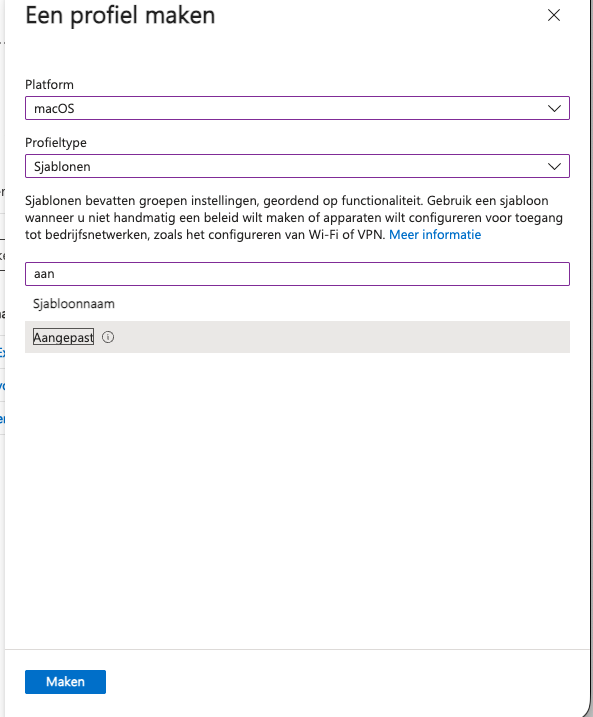
Intune: Devices → macOS → Configuration → New policy → Templates → Custom.
Pick the device channel and assign
For the deployment channel, choose the device channel, upload the profile and assign it to your target group. The channel cannot be changed after saving; if you pick the wrong one, create a new profile.
Verifying the rollout
Walk through the whole chain on the test device, signed in with the work account of a test user without admin rights. The per-step checks above remain the place to zoom in.
Sync the device
As in step 1: Settings → Accounts → Access work or school → the connected work account → Info → Sync. Or restart the device.
Check the policy
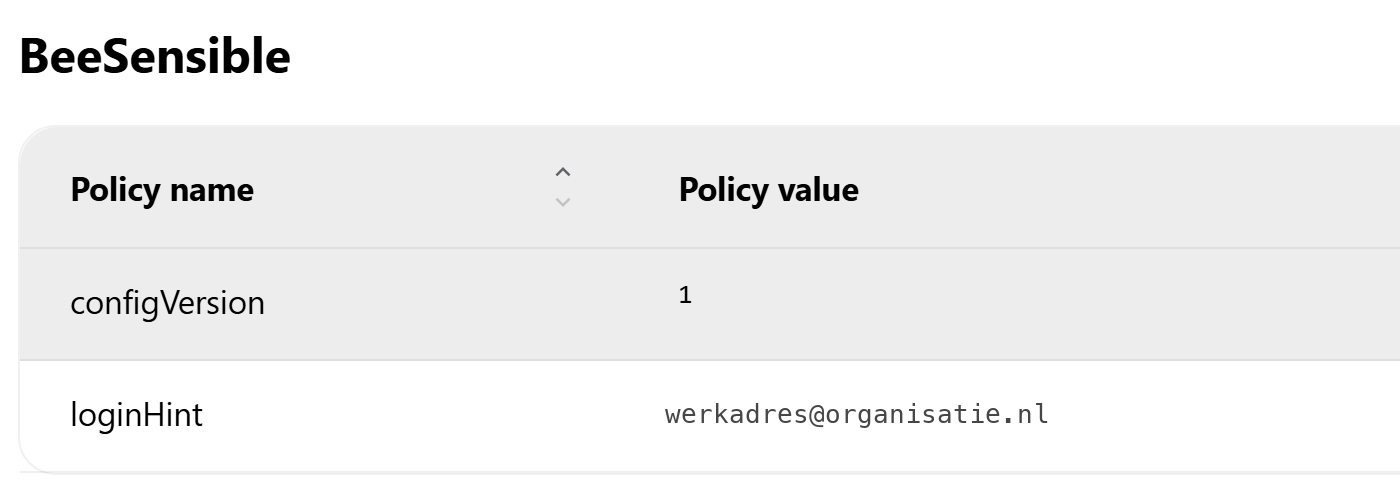
chrome://policy or edge://policy: the BeeSensible line is under ExtensionInstallForcelist, and the BeeSensible section shows configVersion 1 and loginHint with the work address, both with source Platform and status OK.
Check the extension
The BeeSensible extension is in the browser and cannot be removed. Check on chrome://extensions or edge://extensions that the version is at least the one from Automatic Microsoft sign-in.
Check the sign-in
Open a site where BeeSensible works. Expected: the extension recognises the work account and starts the sign-in by itself, without typing an address and without an account picker. In Chrome this is silent once CloudAPAuthEnabled is on the device; in Edge a Microsoft window can appear. Note whatever still appears, for example two-factor authentication.
Check the console
The test member appears on the deployment console under Observed usage; on the members page the sign-in shows as Managed.
Check a second user
Sign in a second standard user on the same device and check that they have their own sign-in hint and see nothing of the first user.
Check the desktop app
After the next Windows sign-in, the BeeSensible icon is in the system tray and the app is signed in with the work account, or asks for it once.
Check private windows
Only if you set that measure: open an InPrivate or Incognito window and check the behaviour from Private windows.
Troubleshooting
The detailed blocks sit with the step where the problem arises; this is the signpost.
Nothing arrives on the device
Force the sync as in step 1 and keep in mind that scripts and configuration profiles each have their own rhythm: the extension being present says nothing about the script.
The sign-in script does nothing
See the blocks at step 1: Entra joined, work account sign-in, loaded profile, verified domain, and the logs on the device.
The sign-in is not silent in Chrome
See Silent sign-in in Chrome under Optional hardening.
The extension version lags behind
Extension updates flow through the browser store and cannot be pinned; see the callout Updates flow through the store at step 2 and the Edge block at Automatic Microsoft sign-in.
The desktop app shows Pending or Failed
See the blocks at the Verify step under Deploying the desktop app.
When someone leaves
Blocking or deleting an employee in Entra does not end the BeeSensible session right away: the running session stays valid until it expires. So end the access in BeeSensible as well. On the members page of the dashboard: Actions → Sign out everywhere, then Remove member. If your organisation uses SCIM provisioning from Entra, the directory pushes the block through by itself; BeeSensible sets up SCIM for you on request.
Rolling back
Everything in this work instruction is reversible.
Withdraw the forced install
Remove the assignment of the configuration profile from step 2. The extension disappears from the browser at the next policy refresh. In the same round, remove the optional policies you set: MandatoryExtensionsForInPrivateNavigation, CloudAPAuthEnabled and IncognitoModeAvailability.
Clean up the sign-in policy
In this order:
- Remove the assignment of the sign-in script, otherwise a later edit sets everything again.
- Assign the cleanup script from the console, with the same settings as the sign-in script (logged on credentials: No).
- Check with the registry commands from step 1 that the keys are gone, then remove the cleanup script as well.
The cleanup script removes exactly what the sign-in script wrote, per user, only for the profiles loaded at that moment, and can safely run more than once. A hint left behind for a user who was not signed in is harmless.
Cleanup script on the deployment consoleUnder step 1, at Rollback.Remove the desktop app
On the Win32 app, add an assignment under Uninstall for the target group and remove the Required assignment. Only removing the Required assignment removes nothing: the app then stays on the devices.
The uninstall deliberately leaves behind: the data folder per user profile (sign-in tokens and settings), the shared model cache, and two registry keys per user.
| What stays behind | Where |
|---|---|
| Data folder per user | %LOCALAPPDATA%\beesensible-desktop |
| Old data folder (older versions) | %APPDATA%\beesensible-desktop |
| Model cache, machine-wide | C:\ProgramData\BeeSensible\engine-cache |
| Sign-in hint (the cleanup script removes it) | HKCU\Software\Policies\BeeSensible |
| Protocol registration of the app | HKCU\Software\Classes\beesensible |
To hand a device back clean, run this cleanup block for the folders as system (for example as a platform script):
Get-ChildItem C:\Users -Directory | ForEach-Object {
  Remove-Item -Recurse -Force -ErrorAction SilentlyContinue (Join-Path $_.FullName "AppData\Local\beesensible-desktop")
  Remove-Item -Recurse -Force -ErrorAction SilentlyContinue (Join-Path $_.FullName "AppData\Roaming\beesensible-desktop")
}
Remove-Item -Recurse -Force -ErrorAction SilentlyContinue "C:\ProgramData\BeeSensible\engine-cache"
The protocol registration is removed per user, in a session of that user:
reg delete "HKCU\Software\Classes\beesensible" /f